By Design Bundles
How to Calibrate a Silhouette in V4.4
If you find that your Silhouette machine isn’t cutting properly, you may need to Calibrate the machine. You should only Calibrate the machine if you are having issues with the Print then Cut function not cutting in the correct spots.
Great news! Calibrating a Silhouette machine only takes a few steps, then you should be back to crafting in no time.
Step 1 - Open Silhouette Studio
Click on the Send icon (1). Then click on Calibrate (2).

Step 2 - Print a Test Page
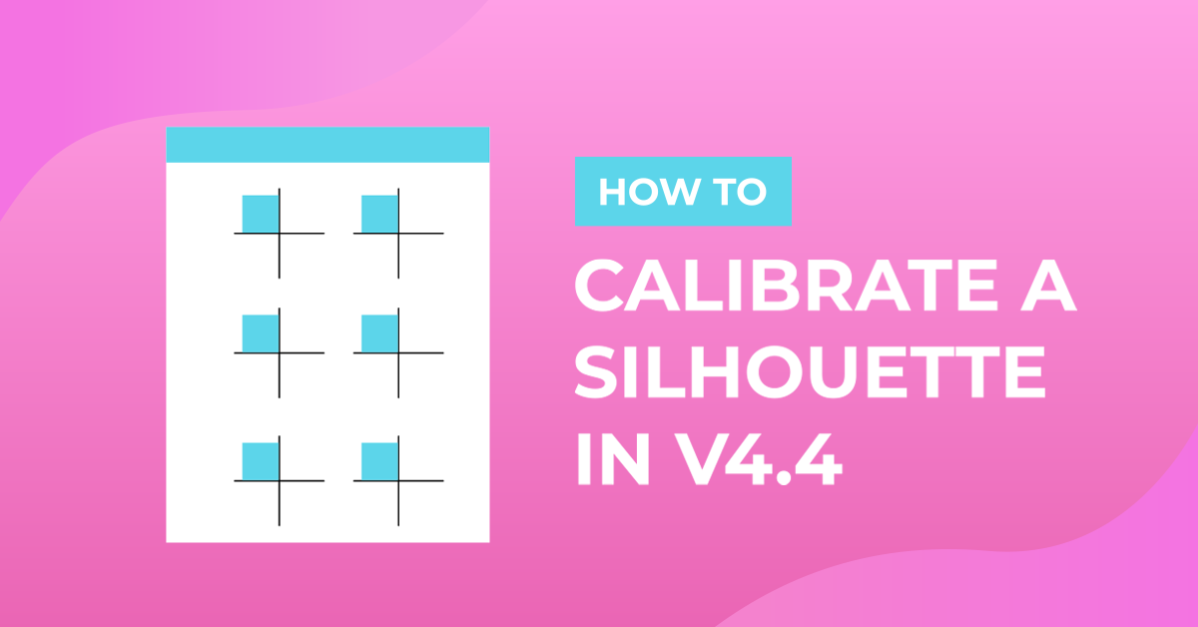
On the new screen at the top you have a choice of calibration or distance alignment. Select calibration(1), then click on Print Test Page.

In the print screen you will see the calibration image appear, click Print.

Step 3 - Go to the Calibration Page
Once printed go back to the calibration page. If it does not automatically send you to the calibration page, re-click the send icon.

Step 4 - Load the Test Page into your Machine
Place your test page onto the mat and load into your machine. Align the blade holder with the blue arrows to move it to the top left corner of each cross and click calibrate.

Repeat this and follow the prompts. Once finished click Exit.
Now your Silhouette Machine should be calibrated properly and is ready to take on Print then Cut projects such as using PNG sticker files to make printable planner stickers or vinyl sticker decals.
If you liked this tutorial make sure you don't miss our other Silhouette tutorials such as using the AutoTrace feature and creating sticker sheets in Silhouette Studio.