By Design Bundles
How to Upload SVGs to Cricut Design Space
Creating a full design in Cricut Design Space is amazing, but sometimes when we're tight on time we just need a pre-made design that we can easily upload to Design Space. Today we will focus on how to upload a pre-made SVG in Cricut Design Space.
Step 1 - Create New Project In Design Space
Once you are logged in you will be on the Cricut home page. This is where you will be able to start a new project by simply clicking on the green button that is labeled New Project on the top right-hand corner.
Step 2 - Click the Upload button
Locate your Upload icon. This is usually the last icon on the toolbar located on the left side of your canvas screen. Today I will be using a messy bun SVG from Design Bundles.

This will start your upload process and will navigate you to the next page where you will need to click on the Upload Image button.
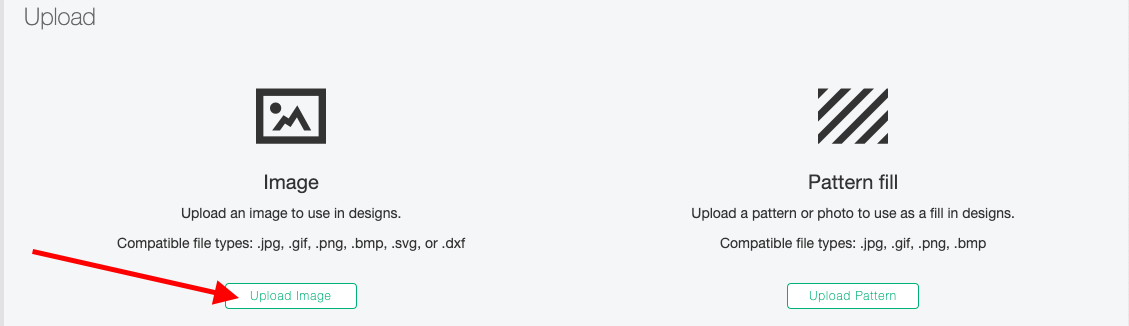
Step 3. Locate your file
Once on the next page click on the Browse button which is located in the center of your screen. This will allow you to search through your computer for the file.
Once you locate the file you can click on the file then click Open on the lower right-hand corner. To Drag a file into Design Space simply click and hold on the selected file and drag and drop to the center of the grey rectangle box.

The last page will automatically appear and you will be able to upload your SVG. Click the beautiful green UPLOAD button on the lower right-hand corner and you are finished.
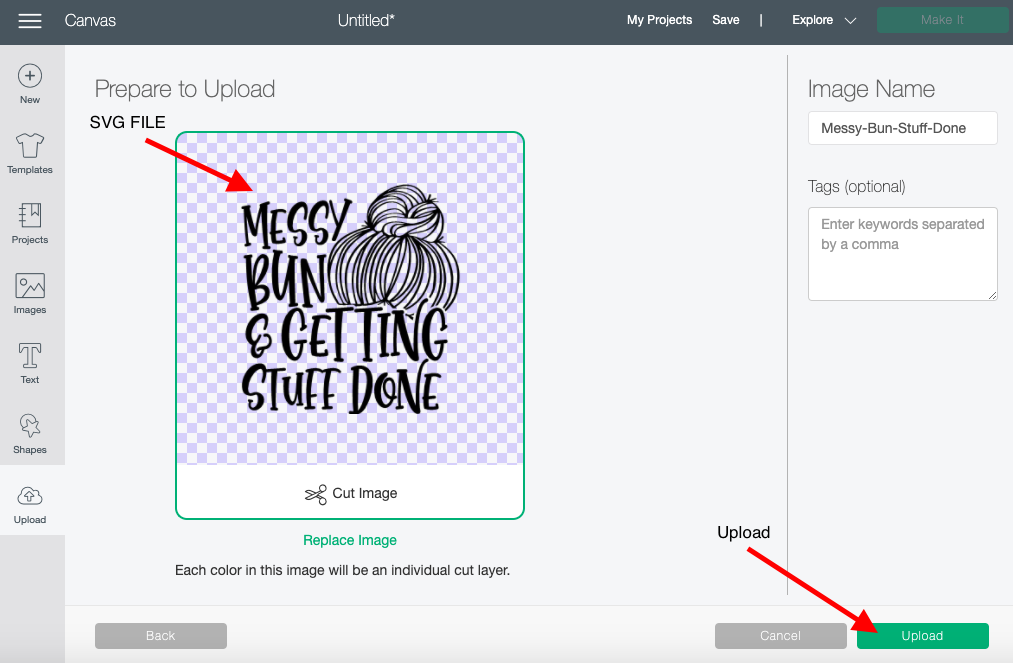
You have successfully uploaded an SVG to Cricut Design Space.
Once you've added SVGs to Cricut Design Space, you can create fun new projects like knockout designs and creating offsets in Design Space.