By Design Bundles
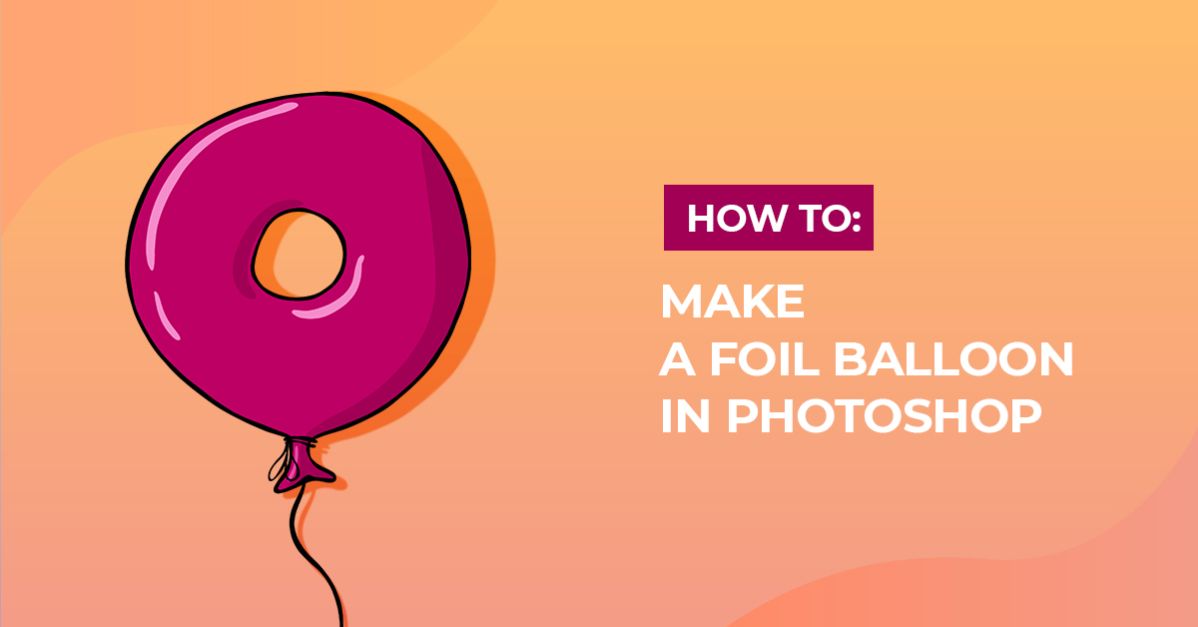
Foil Balloon in Photoshop
For this tutorial, we will use the Sausages font and a “Background” image.
1 - In Photoshop, open the image you chose as “Background”.

2 - Select the “Type Tool” (T), choose your font (we used “Sausages”) and type your text using White as “Fill” color. In our case and since the rendering of the 3D takes a lot of time and RAM we just typed 1 letter. Click on the “Create 3D from Text” button on the Top Menu. Click “Yes” to use the “3D Workspace” in the Pop-up window. (This same effect can be applied to a “Shape” using the 3D Panel).


3 - In the “3D Panel” click on the “Mesh” button and use “Pillow Inflate” as “Shape Preset”.Make the “Extrusion Depth” value “0 px".


4 - Now, go to the “Cap” button or sub-menu, make sure that “Front and Back” is selected for “Sides” and for “Bevel” use a “With” of 4% and a 44° “Angle”, use the “Cone” shape for “Contour”. Back in the “Mesh” sub-menu, rotate your image a bit with the “Orbit 3D Camera” selected. Once you are happy, click the “Render” button at the bottom of the “3D Panel”. This step may take some time.


5 - Right-click on top of your rendered letter thumbnail and choose “Convert to Smart Object”.

6 - In the “Adjustments Panels” create a “New Hue/Saturation Adjustment Layer” and use the following values if you wish to make your letter “Red” or play around with them to make it a different color. Clip it to the next Layer (the one just under it) by clicking the small button at the bottom of the Panel. Change the “Blanding Mode” of the Layer to “Color Burn”.


7 - Go to Filter > Filter Gallery > Artistic > Plastic Wrap and use these values:


8 - The, go to Filter > Distort > Wave and use these:


9 - We noticed that the “Shadow” of our Letter was not realistic so we double-clicked on top of the “Smart Object” to open it in another File and we fixed the shadow. Then, we saved and closed this new file to see the changes reflected in our original document.


10 - Create a “New Color Lookup Adjustment Layer” and use “Crisp_Warm.look” as the 3DLUT File value. Clip this Layer too.

11 - Create a “New Layer” on top of the “Background”, select a small (30 px) hard brush and with Black as “Foreground” color, paint a “Thread” from your shape to the bottom of your file. Double-click on its Layer thumbnail and apply the following “Layer Styles”:

Bevel & Emboss:

Contour:

Texture: (Patter: Woven Flat)

Name this Layer “String”.
12 - Create a “New Layer” on top of “String”, name it “Bottom” and then, make two “Adjustment Layers” on top (Hue/Saturation and Color Lookup) just like the ones you did before and clip them to “Bottom”. Draw a small triangular shape that sits under your “Letter” but on top of your “String”, and fill it with White.

13 - Double-click on the “Bottom” Layer thumbnail and apply the following “Layer Styles”:
Bevel & Emboss: (Gloss Contour: Ring - Double, color: #ffffff)

Stroke: (Pattern: Ant Farm)

Satin: (Gloss Contour: Ring, color: #ffffff)

Drop Shadow: (Color: #000000)

14 - Check it out.