By Design Bundles
Silhouette Tutorials3 min
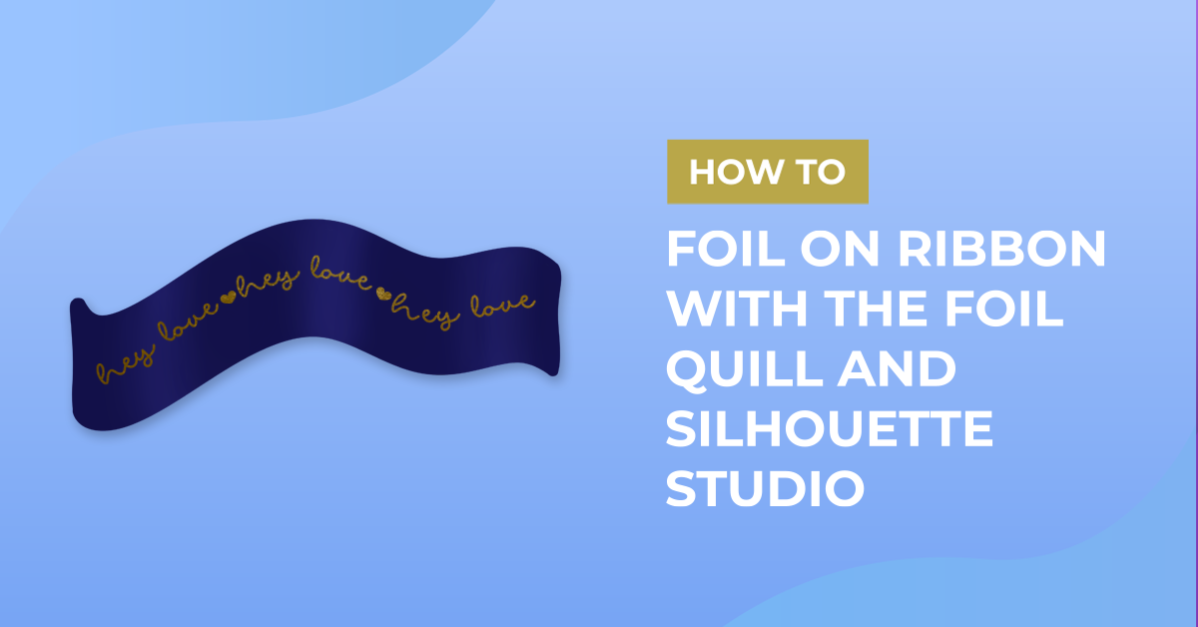
Foiling on ribbon with the foil quill and silhouette studio
1- Open silhouette studio. Click on the text tool.
2- Type your text. Click on the text type tool.
3- Change your font. I have chosen a simple font to clearly add the the ribbon.
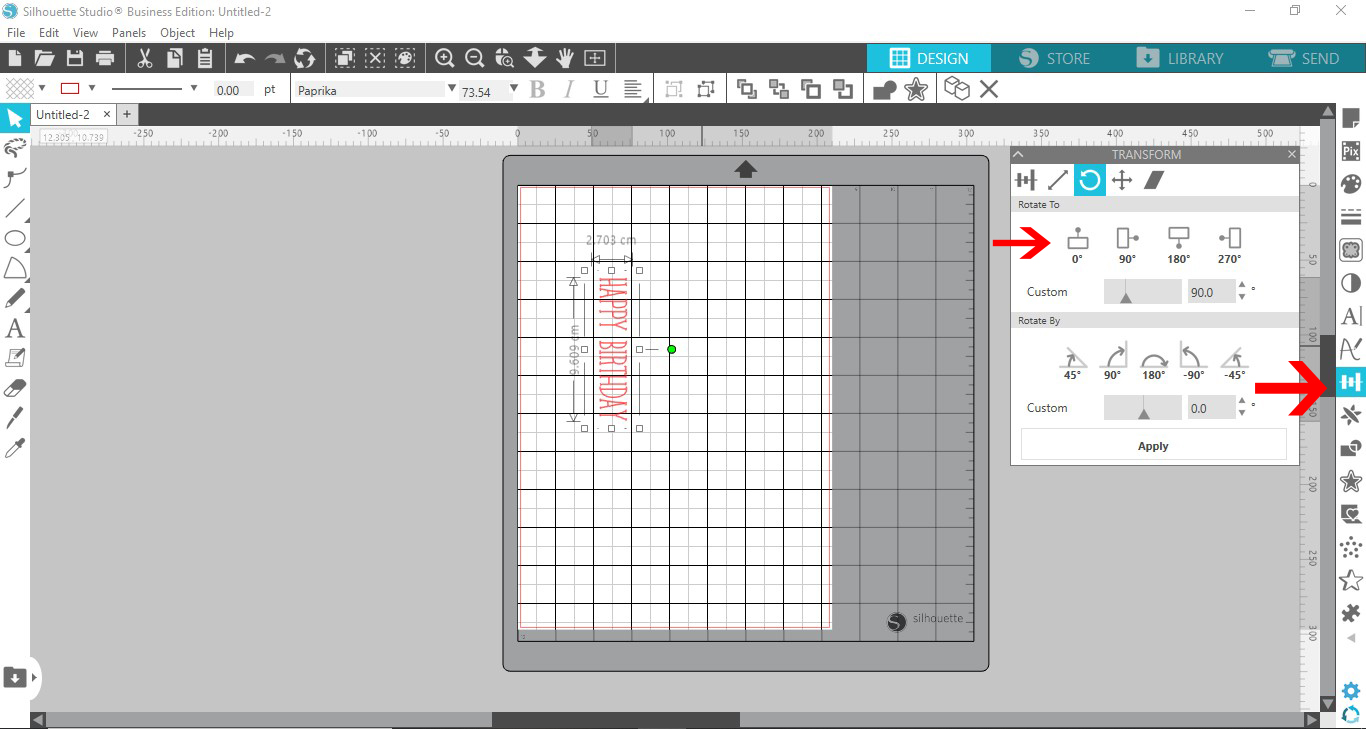
4- Adjust the text to line up with where you are going to place your ribbon on your cutting mat.
If you want to foil onto a piece of ribbon longer than your mat, place your text vertical so you can move the ribbon vertically to print along it.
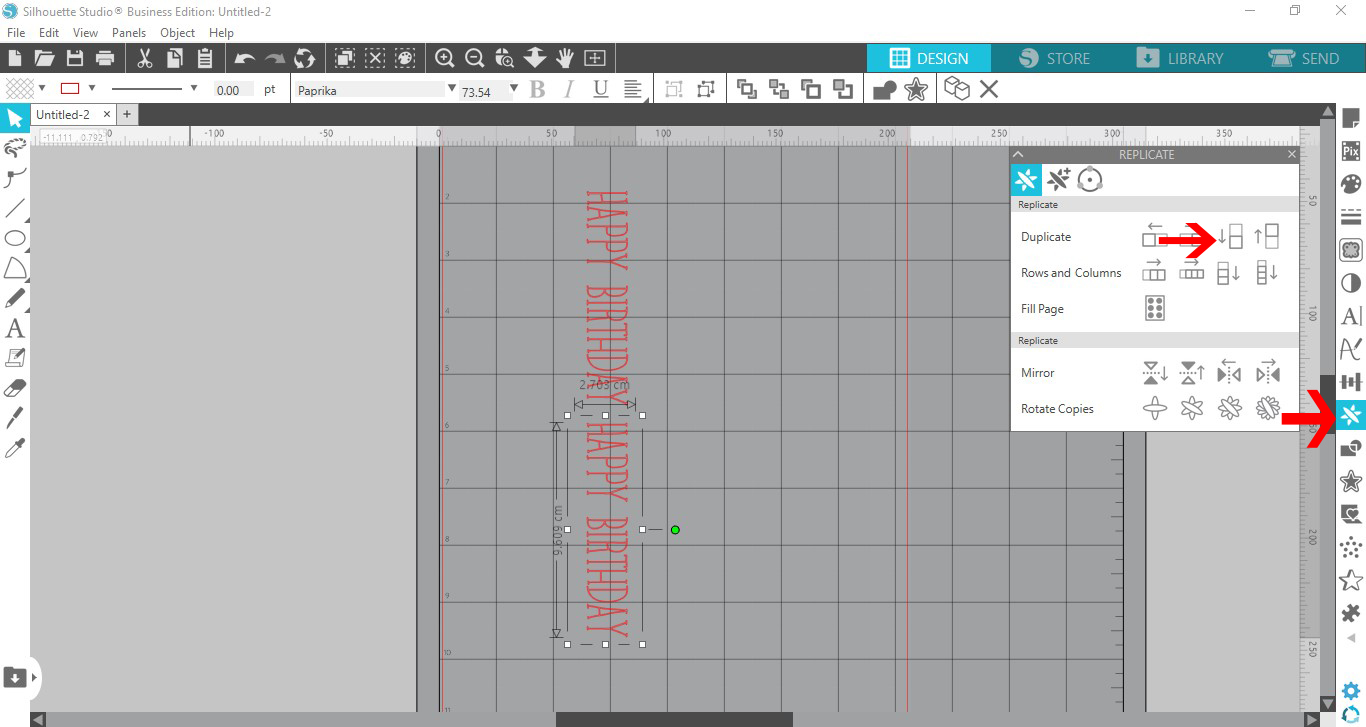
5- Duplicate the text to cover the length of your ribbon.
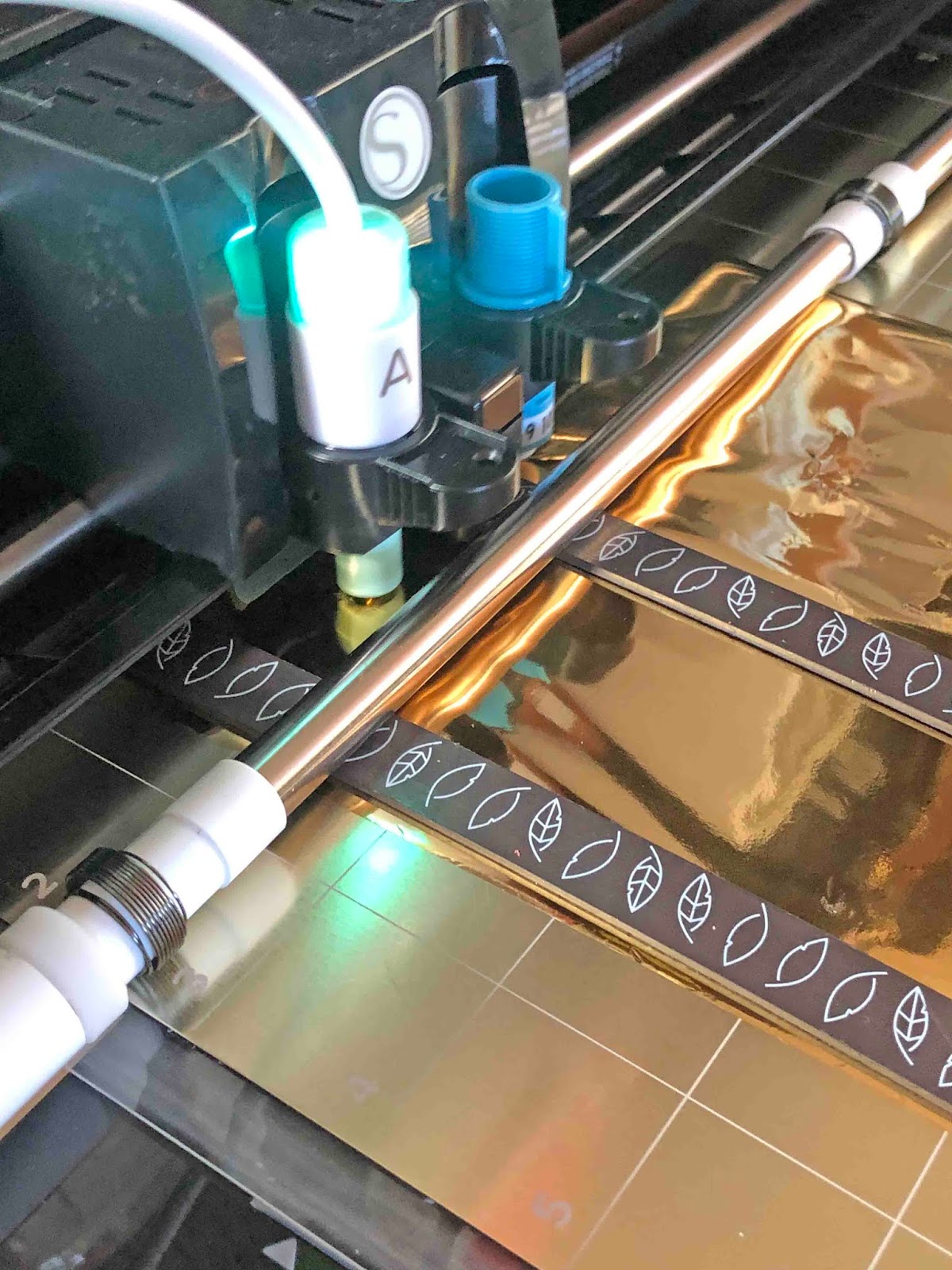
6- When foiling ribbon set the media to card, speed 5, force 4 and passes 1.
7- Click send. Foil your design on the ribbon. Remember you can move the ribbon down each time to foil longer pieces of ribbon.
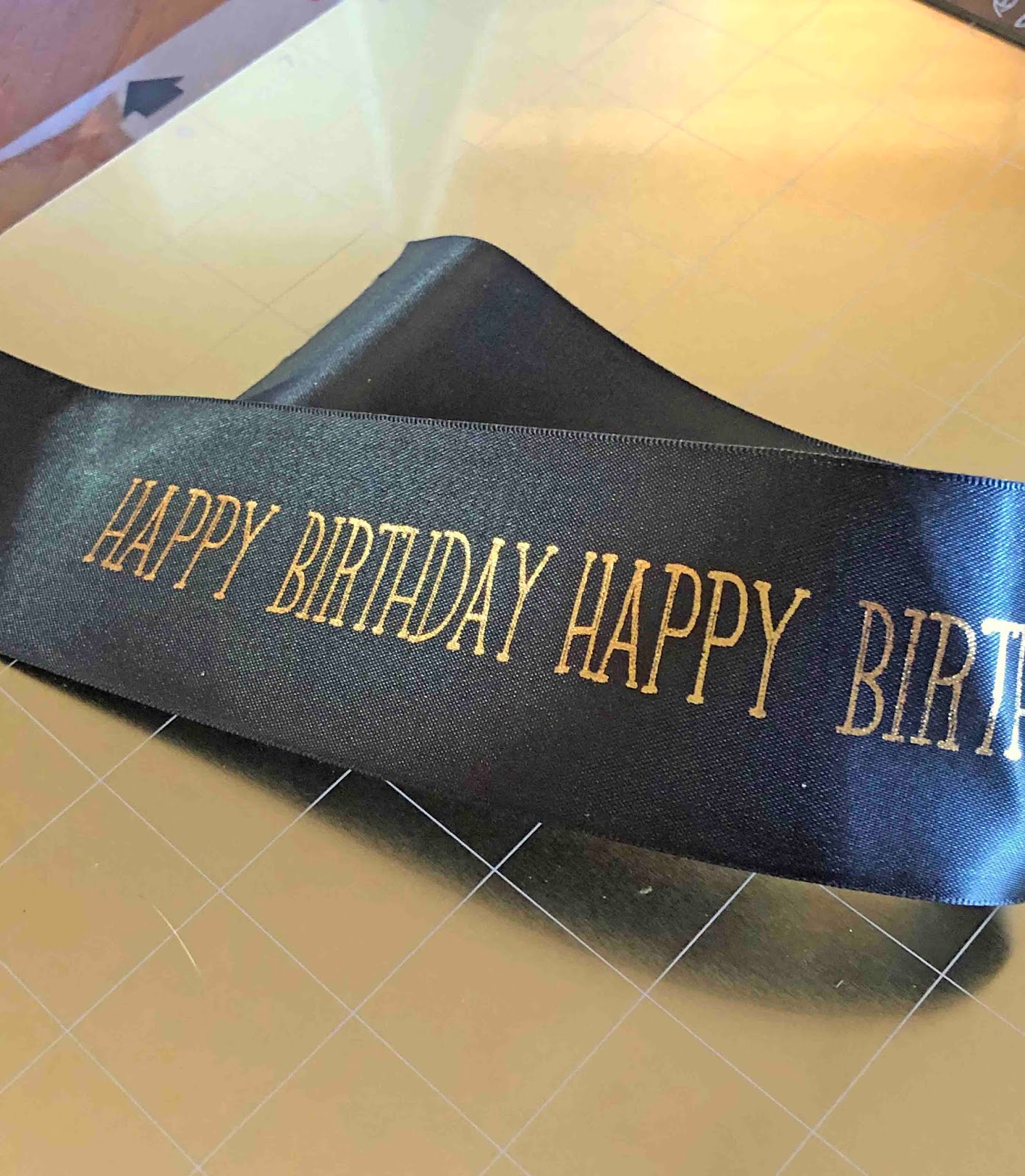
8- Your ribbon is now foiled. The foil will stay on your ribbon and not rub off. you can also foil images as well on ribbon. Satin ribbon is the best type to foil.
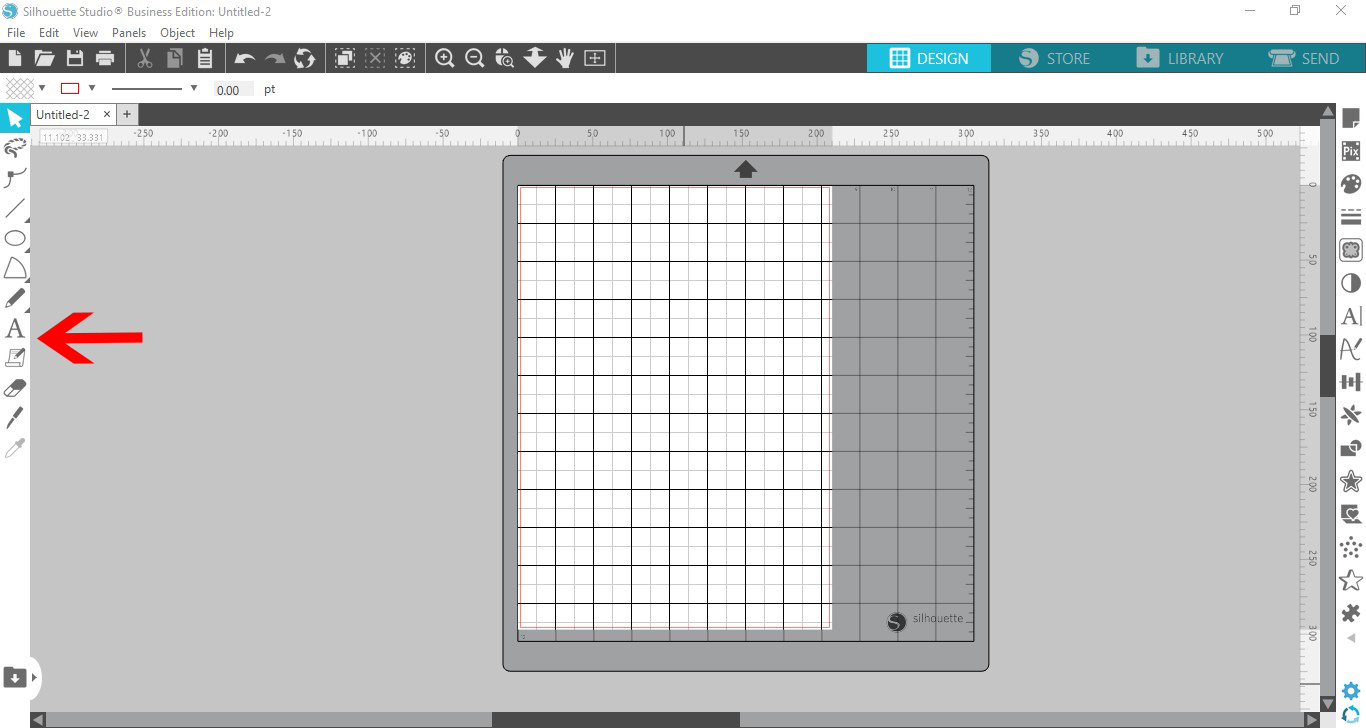
2- Type your text. Click on the text type tool.

3- Change your font. I have chosen a simple font to clearly add the the ribbon.

4- Adjust the text to line up with where you are going to place your ribbon on your cutting mat.
If you want to foil onto a piece of ribbon longer than your mat, place your text vertical so you can move the ribbon vertically to print along it.
5- Duplicate the text to cover the length of your ribbon.
6- When foiling ribbon set the media to card, speed 5, force 4 and passes 1.

7- Click send. Foil your design on the ribbon. Remember you can move the ribbon down each time to foil longer pieces of ribbon.
8- Your ribbon is now foiled. The foil will stay on your ribbon and not rub off. you can also foil images as well on ribbon. Satin ribbon is the best type to foil.
Related Tutorials
Silhouette Tutorials
Foiling on vellum with silhouette studio and the foil quill
Silhouette Tutorials
Foiling leather using the foil quill and silhouette studio
Silhouette Tutorials
How to Use the Foil Quill on Acetate in Silhouette Studio
In this tutorial learn how to use the Foil Quill on Acetate using Silhouette Studio in just 3 Steps!
Silhouette Tutorials
How to use the foil quill on a candle using silhouette studio
Silhouette Tutorials
Multi color foiling in Silhouette Studio with the Foil Quill
Add beautiful Multi Colored Foil Accents to your design using the Foil Quill in Silhouette Studio.
Silhouette Tutorials
How to fill text with the foil quill in silhouette studio free edition
In 4 easy steps learn two ways to fill text with the Foil Quill in Silhouette Studio Free Edition.