
By Design Bundles
Silhouette Tutorials1 min
How to click and drag your files to the design studio space in Silhouette Studio
*free edition and higher.
1- Open Silhouette studio. Click on the little tab at the bottom left of your toolbar.
2- Your library will not pop out on the side as a split screen.
3- Select the design you would like to use.
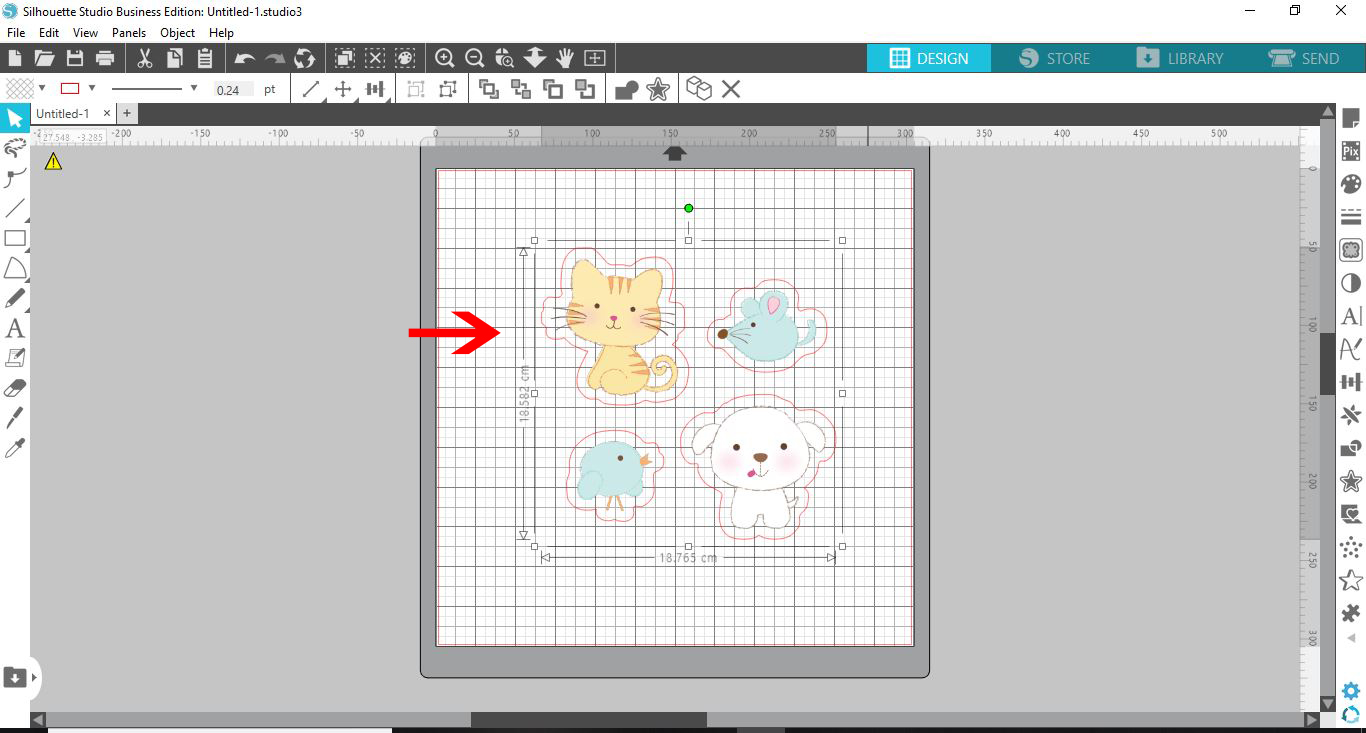
4- Click and drag on the design to your design space.
5- Your image/cut file is not on your design space. you can edit it as you would normally. Click on the tab to close the library.
1- Open Silhouette studio. Click on the little tab at the bottom left of your toolbar.
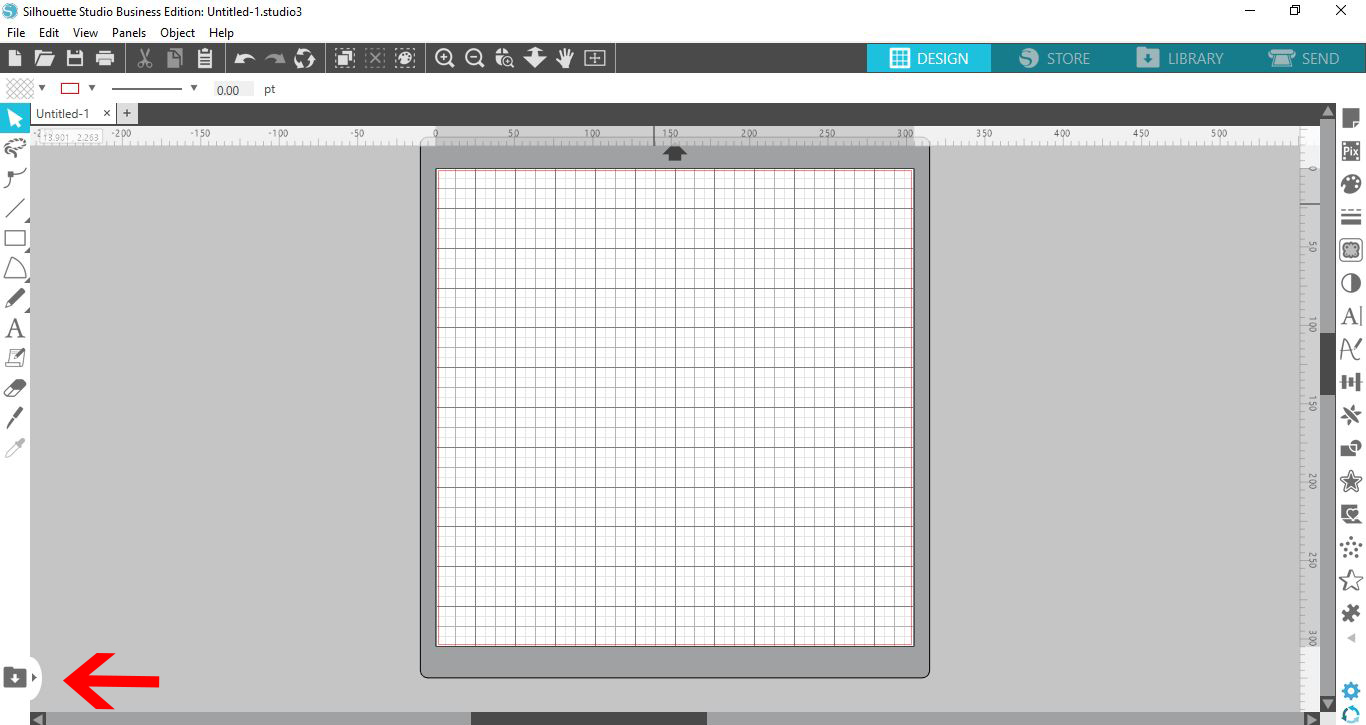
2- Your library will not pop out on the side as a split screen.
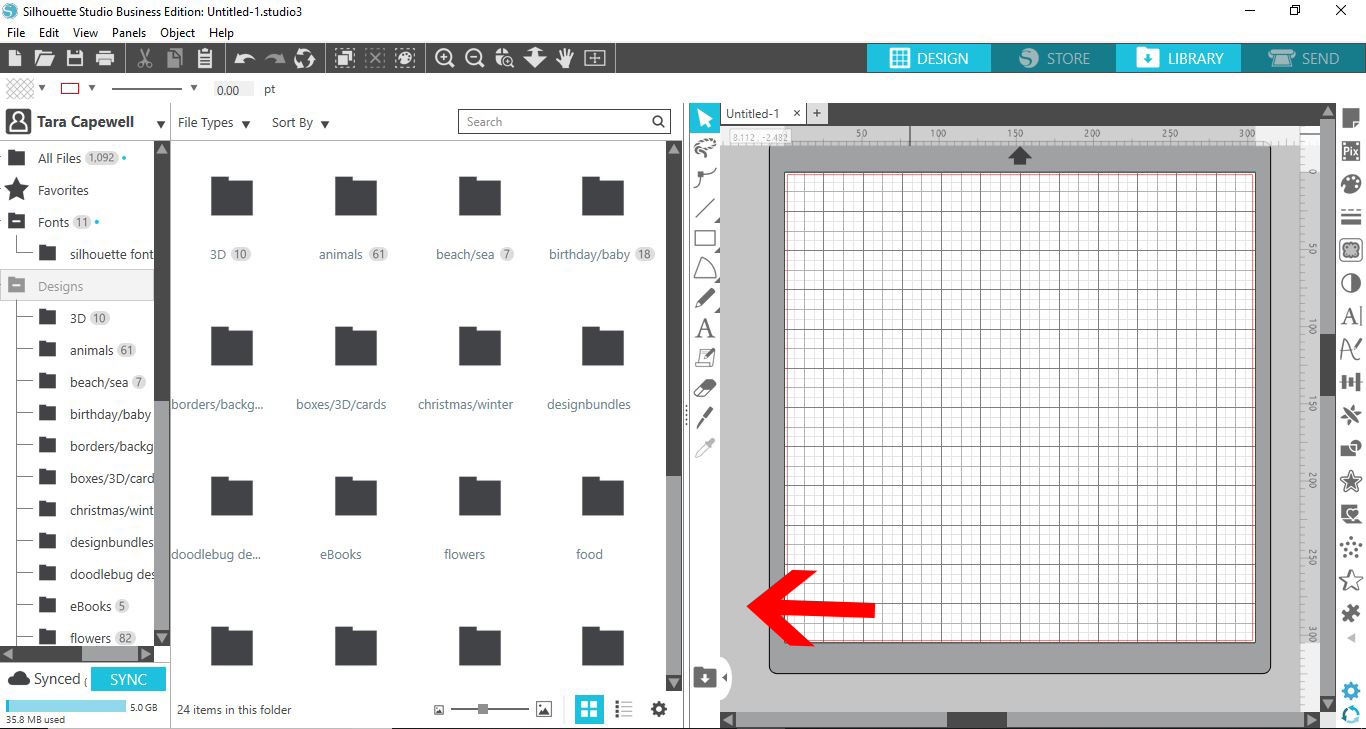
3- Select the design you would like to use.
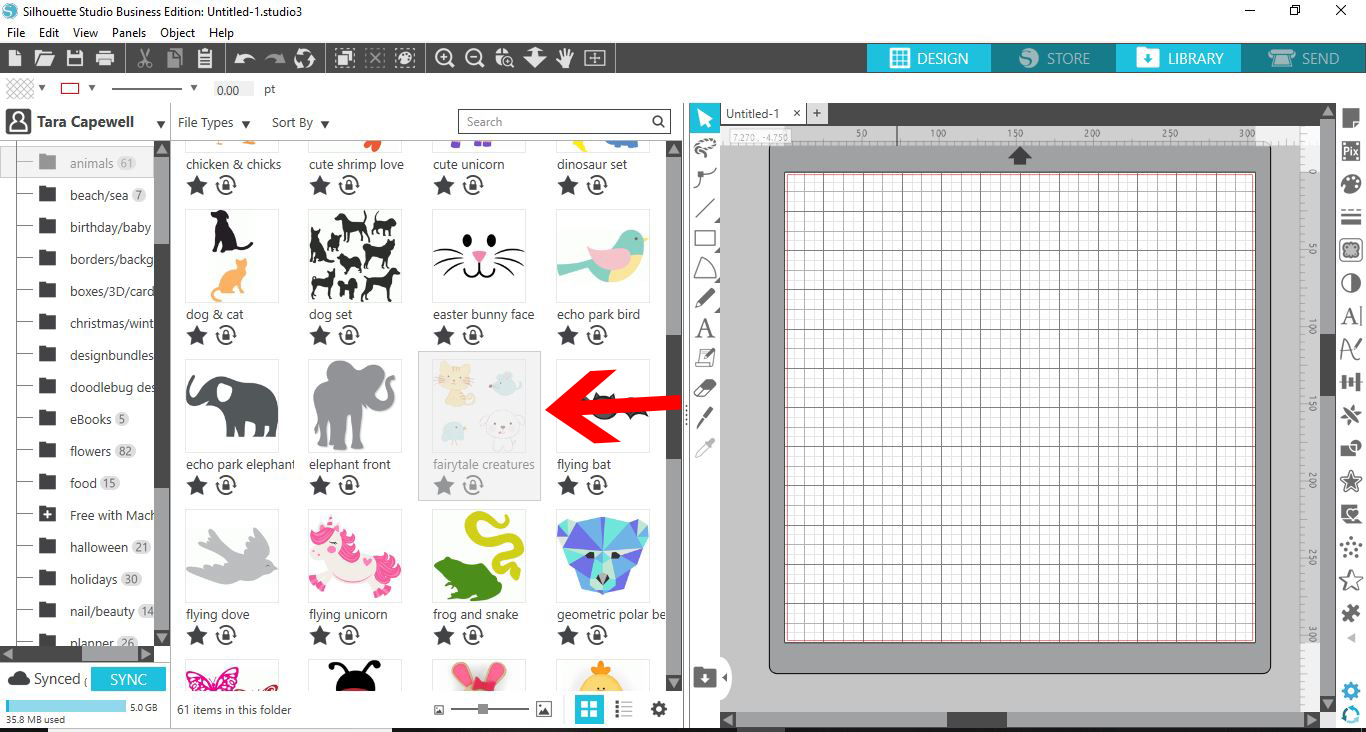
4- Click and drag on the design to your design space.
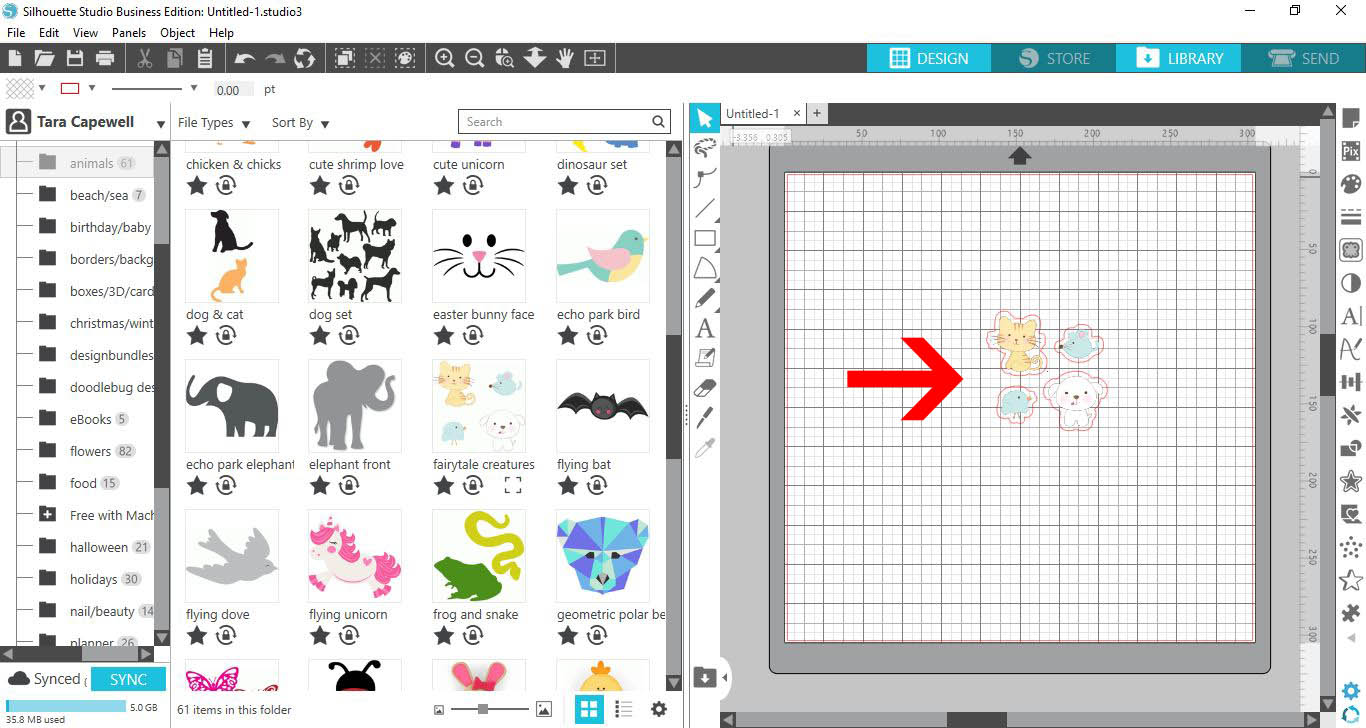
5- Your image/cut file is not on your design space. you can edit it as you would normally. Click on the tab to close the library.
Related Tutorials
Silhouette Tutorials
How to Use Silhouette Files in Cricut Design Space
Discover how you can use your Silhouette Studio file in Cricut Design Space.
Cricut Tutorials
How to Thicken Text for Cricut Design Space using Silhouette Studio
In this tutorial learn how to use Silhouette Studio to create thicker text for Cricut Design Space.
Cricut Tutorials
Filling text in Cricut Design Space using Silhouette Studio software
Learn how to fill text with a pattern using Silhouette Studio, then import to Cricut Design Space.
Silhouette Tutorials
How to Change Patterns on SVG Files in Silhouette Studio
Cricut Tutorials
How to Use SVG Files in Cricut Design Space
Silhouette Tutorials
How to use SVG Files in Silhouette Studio
In this tutorial, learn how to upload and use SVG file in Silhouette Studio.