Get Unlimited Access to Millions of Craft Designs, Templates, Fonts and More! Start Creating for Free Now

DesignBundles.NET
Pricing
DesignBundles.NET

Categories

New

Account

Start Free Trial
Opening a SVG file in Silhouette V4.1 Free edition

By Design Bundles

Opening a SVG file in Silhouette V4.1 Free edition

1- To use an SVG file in Silhouette studio free edition we need to convert it from an SVG to a Jpeg.

There are free converters online;however, if you have a Design Bundles Plus Membership, you can use the File Converter Tool!

1- Open your converted file in Silhouette Studio. I am using a design from thisFree SVG Bundle.

2- Find the file location and open it.

3- The SVG file is now converted into a jpeg in Silhouette.

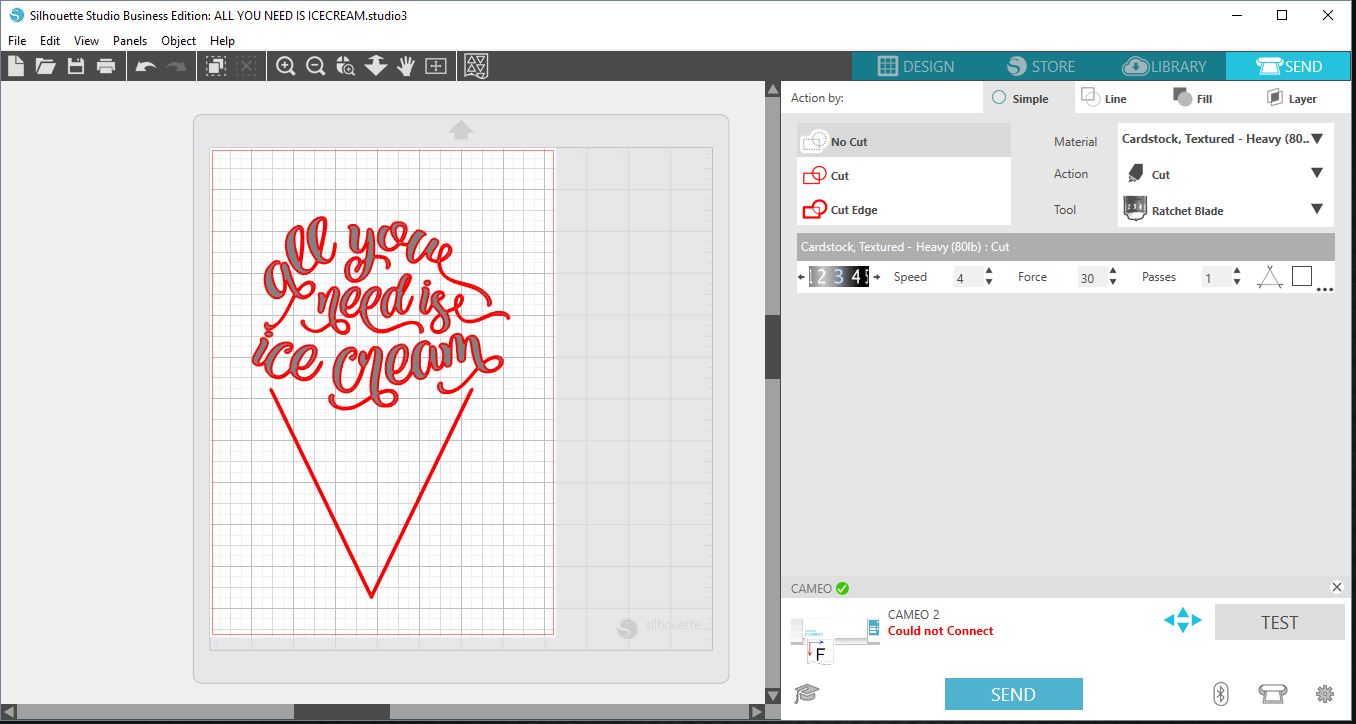
4- As you can see in the send screen that the file now a Jpeg, has no cut lines. We will need to create these.

5- Go into the Trace panel and trace your image. If you have several colors to trace use the color by trace to recreate yourSVG image. If you are unsure how to use trace by color, check outourTrace Options in Silhouette Tutorial.

6- Once traced, you can go back into the send screen to cut your image.
Related Tutorials

Silhouette Tutorials

How to fill text with the foil quill in silhouette studio free edition

In 4 easy steps learn two ways to fill text with the Foil Quill in Silhouette Studio Free Edition.
Silhouette Tutorials

How to Add Embossing Effect to Cookie Cutter Using a SVG file In Silhouette Alta 3D Printer Software

In only 4 steps, discover how to make an embossed cookie cutter with the Silhouette Alta 3D printer.

Keep going

You may also like

All silhouette tutorials
The weekly drop

Fresh tutorials, trends & free files.

Join 6 million makers getting our best craft guides and exclusive freebies straight to their inbox.

No spam. Unsubscribe anytime.